

You’ve built the business case. You have a timeline. Then someone asks: “What about all our apps?”
For many teams, marketplace apps are the part of an Atlassian cloud migration that gets discovered last — and causes the most delays. This guide walks you through a practical, step-by-step app audit so you know exactly what you’re working with before the migration kicks off.
Why Marketplace Apps Can Derail Your Atlassian Cloud Migration
Most admins know that migrating from Data Center to cloud means moving Jira projects, Confluence spaces, and user data. What’s easier to overlook is the app layer sitting on top of all of that.
Here’s why apps deserve their own dedicated audit before your Atlassian cloud migration begins:
- Not every app has a cloud version. Some vendors never built one. Others built one and abandoned it. A few are actively sunsetting their DC product to push customers to cloud — but the cloud version may still be missing features your team relies on every day.
- App data doesn’t migrate automatically. Your Jira issues and Confluence pages will move with Atlassian’s built-in migration tools. Your app data — custom field values populated by apps, plugin-stored configurations, third-party integration settings — usually won’t.
- Pricing models are fundamentally different. Cloud and Data Center apps use entirely different pricing structures, and the switch can be a meaningful budget surprise if you haven’t modeled it in advance.
The earlier you catch these gaps, the more time you have to plan around them. We’ve covered the broader risks of staying on Data Center in a previous post — your app stack is one of the most concrete places those risks show up.
Step 1: Get a Complete App Inventory
Before you can audit anything, you need to know what’s installed.
In both Jira and Confluence Data Center, navigate to Apps > Manage apps from the top navigation bar (System Administrator permissions required). If the link doesn’t appear, make sure you’re logged in with an admin account and that your instance is running the latest version of the Universal Plugin Manager (UPM).
When you land on the Manage apps page, you’ll first see apps that need admin attention — updates available, unlicensed apps, or expiring licenses. To get a complete picture for your audit, switch to the User-installed filter, which shows every app installed or updated separately from the core Atlassian application. These are the ones you own the responsibility for during migration. Use All add-ons if you want a comprehensive list including system apps.
For each app, click into the details view and record:
- App name and vendor (including a link to the Marketplace listing)
- Current version
- Active or disabled status
- License status and expiry
- Number of modules enabled (visible at the bottom of the details view — e.g. “42 of 42 modules enabled”)
- Approximate usage — how many teams use it, how frequently
Don’t stop at the obvious ones. Apps installed with admin rights by individual teams often fly under the radar and show up as surprises mid-migration. A thorough inventory means checking both Jira and Confluence instances, and looping in team leads who may have requested installs you’re not aware of.
For full details on navigating the UPM, see Atlassian’s documentation on viewing installed apps.
Step 2: Check Cloud Availability on the Marketplace
With your inventory in hand, head to the Atlassian Marketplace and check each app for cloud compatibility. You can filter by hosting option (Cloud, Data Center, Server) to quickly narrow down what’s available.
For each app on your list, confirm:
- Is there a cloud version?
- Is it actively maintained? (Check the last update date and how recently the vendor has responded to reviews.)
- Is there a published migration path from the DC version?
If an app has no cloud version, you have three options: find an alternative on the Marketplace, check whether the vendor has one on their roadmap (worth a direct email), or plan to deprecate the functionality entirely. None of these are quick decisions — which is exactly why building them into your migration timeline early makes such a difference.
Not sure where to start with your own app audit, or want an expert set of eyes on your environment? Book a cloud migration assessment, and we’ll help you map out exactly what your migration involves before you commit to a timeline.
Step 3: Evaluate Feature Parity
A cloud version existing is not the same as a cloud version being equivalent. This is one of the more frustrating parts of an Atlassian cloud migration: the app is there, it’s maintained, but the specific feature your team depends on hasn’t been built yet.
For each app with a cloud version, check:
- Does it support the same workflows and configurations you currently use?
- Are there documented feature gaps in the vendor’s changelog or release notes?
- Have users flagged missing functionality in Marketplace reviews?
The most reliable way to get answers is to contact the vendor directly. Most will share their roadmap or confirm whether a specific feature is planned. It’s worth the time — it’s significantly easier to find an alternative before you’re mid-migration than after.
Step 4: Plan for App Data Migration
This is the step that catches most teams off guard. Even when an app has a cloud version with solid feature parity, the data stored by that app — custom configurations, historical records, plugin-specific fields — typically doesn’t move with Atlassian’s standard migration tools.
What to do:
- Check whether the vendor provides a migration guide or migration assistant. Many do — ask even if it isn’t publicly documented.
- Identify what data needs to be preserved vs. what can be cleanly reconfigured from scratch in the cloud environment.
- Factor any manual migration steps into your project timeline and assign ownership now, before the migration starts.
For apps where no migration path exists, you’ll need to decide whether to export and reimport manually, accept a data reset, or delay that app’s migration until a solution is available. These aren’t easy calls, and they’re much better made with time on your side. See our post on building the business case for cloud migration for how to frame trade-offs like these for stakeholders.
Step 5: Reassess Licensing Costs
Cloud and Data Center app pricing work very differently, and understanding the distinction is key to avoiding budget surprises in your Atlassian cloud migration.
Cloud apps use flexible, user-based pricing with monthly or annual subscription options. Many vendors offer tiered flat rates — especially for smaller teams — which can make costs more predictable and easier to scale. You’re not locked into an annual commitment in the same way, and you typically only pay for the users who need access.
Data Center apps use a rigid annual per-user tier model that must match your host product license tier. You pay for the full user count on your Jira or Confluence DC license regardless of how many people actively use the app. At high user counts, this can actually be more cost-effective than cloud pricing — but it offers no monthly flexibility and forces you to buy in bulk.
For each app in your inventory, model what cloud pricing would look like based on your actual active user count. You may find some apps become cheaper, others more expensive — and a few might prompt you to question whether you need them at all. That’s a valuable conversation to have before the migration, not after.
Apps Are One of Six Dimensions to Get Right
Marketplace apps are one of the key dimensions of a thorough Atlassian cloud migration readiness assessment — and one of the most frequently underestimated. The others, including custom workflows, integrations, data residency requirements, and user management, are equally easy to underestimate if you’re not looking for them.
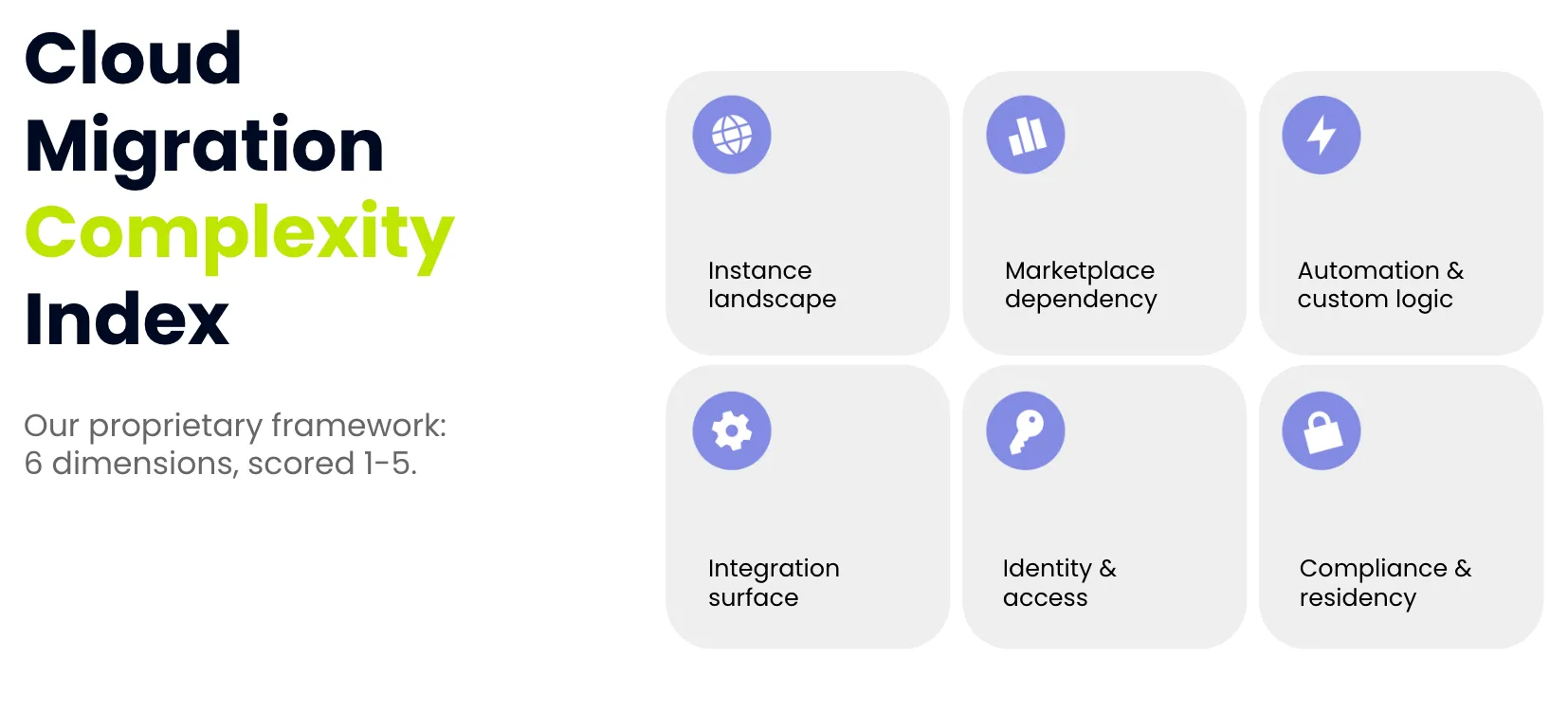
If you want to go into your migration with a complete picture, join us for a free webinar on April 29th, 2026. We’ll walk through all six dimensions and help you build a readiness score for your specific environment. Register for the live webinar or watch the replay here.