

Migrating to Atlassian Cloud is one of the best opportunities to start fresh. A cluttered Data Center instance doesn’t stay behind when you move; it comes with you. Taking time to clean up before your Atlassian cloud migration means a faster, cheaper, and more secure move.
This guide walks Jira and Confluence admins through the key pre-migration cleanup tasks: archiving old projects and spaces, deactivating inactive users, auditing permissions, and closing out stale issues and pages. Think of it as your admin’s pre-flight checklist.
Why Data Cleanup Matters Before Your Atlassian Cloud Migration
Three things make pre-migration cleanup worth the effort:
- Migration scope drives cost and complexity. The more data you move, the longer and more expensive the process. Every inactive project, dormant user account, and orphaned attachment adds to that scope.
- Cloud licensing is per user. Unlike Data Center, Atlassian Cloud charges per active user. Carrying over hundreds of inactive accounts directly inflates your bill from day one.
- Permissions don’t fix themselves. Overly broad or misconfigured permissions in your Data Center instance will carry straight into the cloud. It’s much easier to clean them up now than to untangle them after the migration is done.
Archive Old Jira Projects
Start by identifying which Jira projects are genuinely inactive. A good rule of thumb: if a project has had no activity in 12 months, it’s a candidate for archiving.
How to find inactive projects:
- Go to Administration > Projects in Jira administration
- Sort by last activity date to surface projects with no recent updates
- Check in with project leads to confirm whether a project is truly done or just quiet
How to archive a project in Jira Data Center:
- Go to Administration > Projects
- Find the project and select Actions > Archive
Per Atlassian’s Data Center project archiving documentation, archived projects are immediately hidden from view and moved to the Archived projects page. Jira reindexes automatically to remove the project from search results, but all data remains in the database — you can restore an archived project at any time.
A few things archiving doesn’t affect: associated schemes, workflows, and issue types. Those remain in place, which matters if the same scheme is shared with active projects.
Clean Up Users and Groups
Cloud licensing is per user, so this step has a direct cost impact. Before your Atlassian cloud migration, get your user list in order.
Identifying inactive users:
- Go to Administration > User Management in Jira
- Browse the user list and sort by last login date
- Flag anyone who hasn’t logged in within the past 6 months as a candidate for deactivation
Deactivating vs. deleting: Always deactivate rather than delete. Per Atlassian’s Data Center user management documentation, to deactivate a user go to Administration > User Management, find the user, select Edit, uncheck the Active checkbox, and save. This preserves all their data — issue history, page authorship, and comments remain intact. Deletion is permanent and can leave orphaned records throughout your instance.
If you’re dealing with a large number of inactive accounts, Atlassian has a bulk disable guide for Jira Data Center, which is much faster than working through users one at a time.
Audit group memberships:
Groups are often where permission bloat lives. Common problems include catch-all groups with site-wide access, former employees still sitting in admin groups, and contractor accounts with permissions that outlasted the engagement. Tighten these up before migration — a streamlined group structure is much easier to manage in cloud.
One thing to get ahead of: Atlassian Access and managed accounts play a bigger role in cloud than in Data Center. If your organization isn’t already managing users through Atlassian Access, now is a good time to understand how that will work post-migration.
Run a Permission Audit
Permissions are the unglamorous part of cloud migration prep, but they’re also where the most risk lives. Misconfigured permissions that exist in your Data Center instance today will exist in your cloud instance tomorrow.
Want to know if your instance is ready to move? Watch our on-demand webinar on evaluating your Data Center instance’s readiness for cloud for a deeper look at what to assess before you start the migration process.
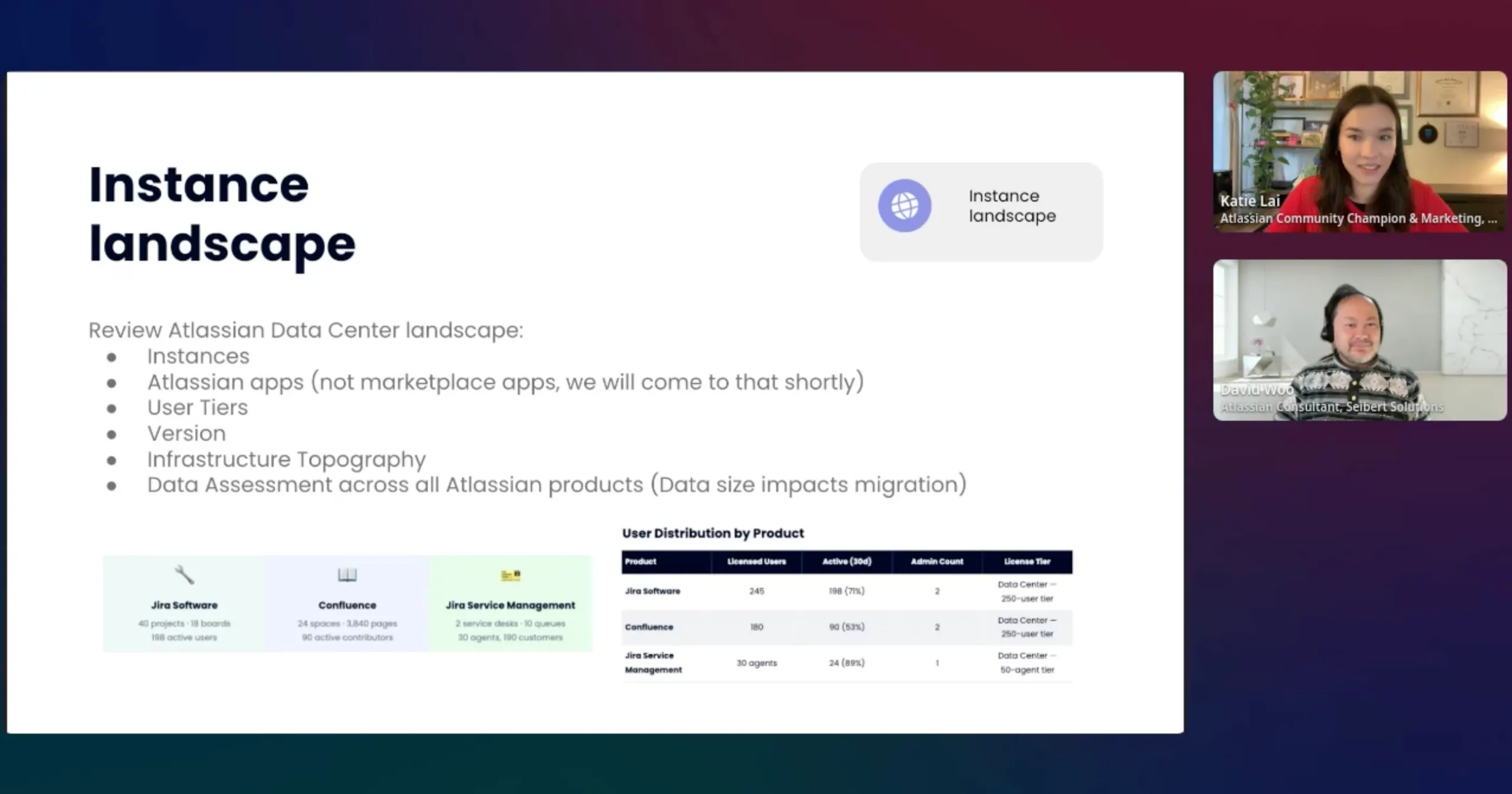
Jira: Permission Schemes and Project Roles
Jira uses permission schemes to control who can do what across projects. Before migration, review each active scheme and look for:
- Overly broad grants like “Any logged-in user can delete issues”
- Roles that no longer reflect how your teams are structured
- Duplicate or near-identical schemes that could be consolidated into one
To review and update schemes, go to Administration > Issues > Permission Schemes in Jira administration. Atlassian’s Data Center guide to managing project permissions covers how to view, edit, and simplify your schemes.
You can also use Jira’s audit log to review recent permission changes — useful for spotting anything that was modified and never reverted. Access it at Administration > System > Audit log. The audit log requires the Administer Jira global permission.
Confluence: Space Permissions
In Confluence, every space manages its own permissions independently. Go through your active spaces and check:
- Is anonymous access enabled anywhere it shouldn’t be?
- Are there spaces where “all logged-in users” have edit or admin access?
- Do the current space admins actually reflect who owns those spaces today?
To review and update space permissions, go to the space and select Space tools > Permissions from the bottom of the sidebar. Atlassian’s Data Center guide to assigning space permissions walks through each option in detail.
Migration is also a good opportunity to simplify your permission model. Fewer custom configurations and fewer one-off exceptions means less to manage once you’re in cloud — and a smaller surface area for things to go wrong.
Tidy Up Pages and Issues
Confluence: Stale Spaces and Orphaned Content
Beyond archiving inactive spaces, take a look inside your active spaces for:
- Draft pages that were never published — review and either publish or delete them before migration
- Personal spaces that haven’t been touched in years
- Duplicate pages created when someone couldn’t find the original
For spaces that are clearly no longer active, use Confluence Data Center’s space archiving to remove them from search results and navigation without losing the content. To archive a space, go to the space and select Space tools > Overview > Edit Space Details, then change the Status to Archived and save. The content remains fully accessible via direct links and can be restored at any time.
Jira: Old Issues and Abandoned Backlogs
Take a pass through your active projects and close out issues that have been sitting in limbo:
- Issues in old sprints that were never resolved or carried forward
- Backlog items that are years old and no longer relevant
- Subtasks on completed parent issues that were accidentally left open
You don’t need to resolve every ambiguous ticket — the goal is to reduce noise and get your issue counts to reflect reality. A leaner issue list makes post-migration board management much easier.
Also worth checking: large attachments. Attachments are often the biggest contributor to migration data size. Look for large or duplicate files attached to issues and remove what you no longer need.
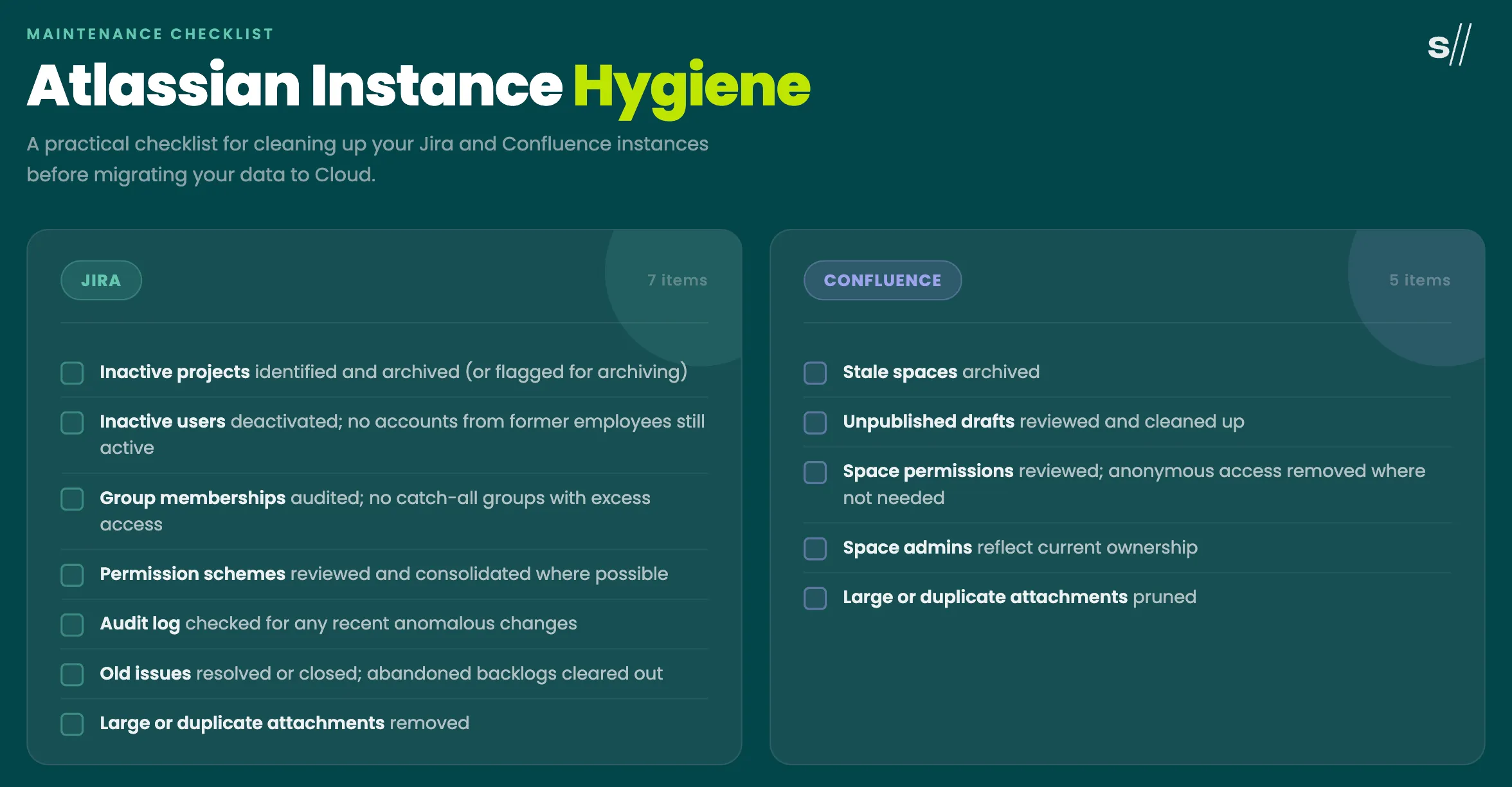
Pre-Migration Cleanup Checklist
To get your Data Center instances ready for the cloud, use this checklist to track your progress:
Ready to Move? Let’s Map Out the Right Path.
Data cleanup is a significant part of a successful Atlassian cloud migration — but it’s not the whole picture. Choosing the right migration path, timing the cutover, and managing user adoption all matter too.
If you’d like an expert review of your environment before you move, Seibert Solutions US offers a migration assessment to help you understand what you’re working with and plan the right path forward. Book your migration assessment and go into your migration with confidence.