

This article was written in collaboration with Olha Yevdokymova, Product Marketing Manager at SaaSJet.
Epic, Cerner and Meditech manage patient records. But the work that keeps those systems, and the devices around them, running happens somewhere else: more and more, in Jira and Jira Service Management (JSM). Biomedical device repairs, EHR order set changes, clinical application outages, compliance audits, credentialing and security reviews all land in a Jira queue.
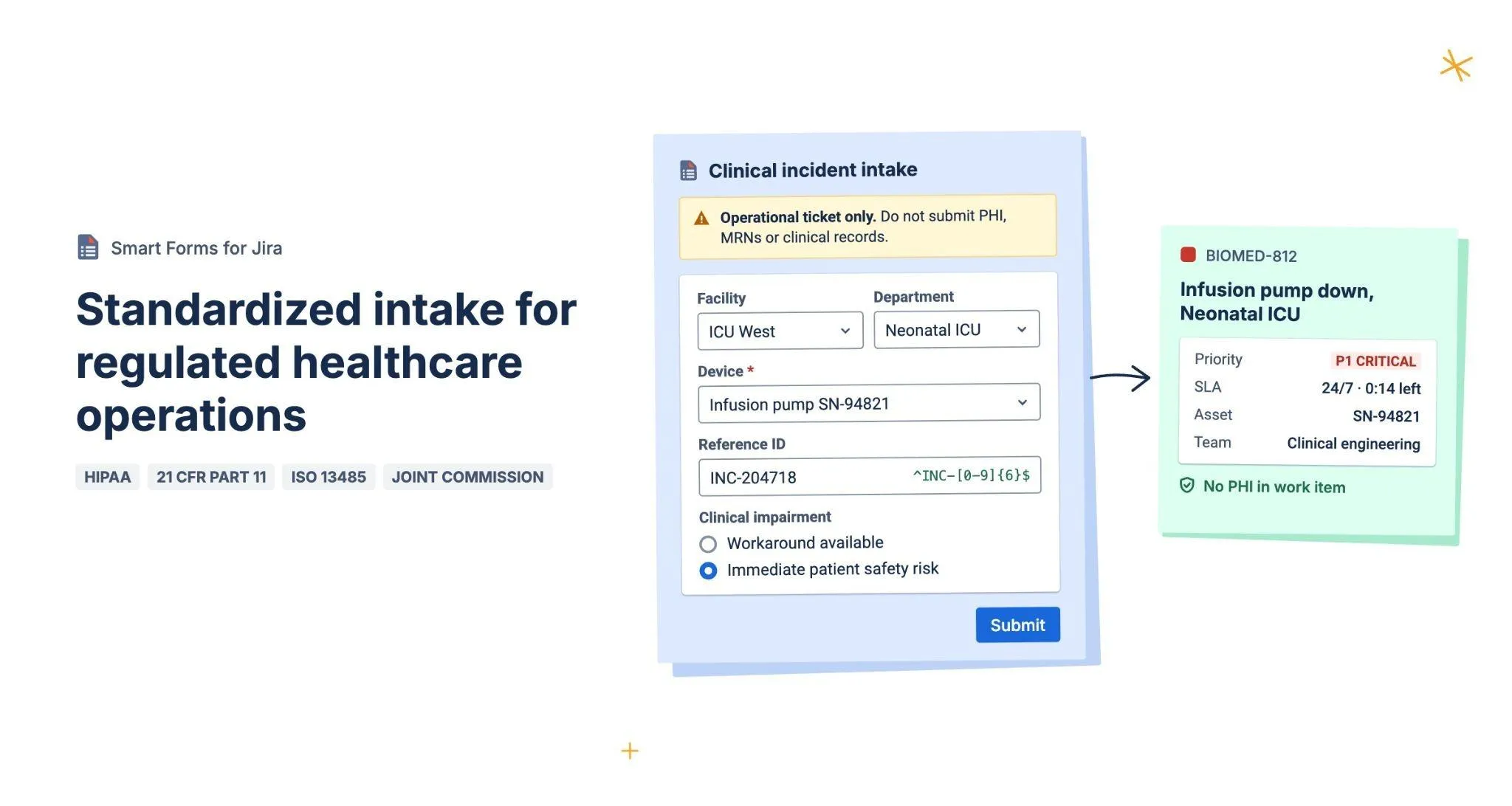
That’s a problem if your intake was designed for a general IT help desk. Healthcare runs under HIPAA, FDA 21 CFR Part 11, ISO 13485 and Joint Commission requirements, and a generic intake form breaks down fast:
- The PHI Leakage Trap: an open, unformatted “Describe your issue” text area invites clinicians to paste patient names, MRNs or diagnoses into Jira, creating a serious compliance issue.
- The Incomplete Request Void: an emergency ticket comes in saying “The monitor in ICU isn’t working” with no equipment serial number, no room, no clinical severity. Triage stalls while support agents spend hours chasing staff by chat and phone.
- The Schema Bloat Crisis: admins are creating hundreds of single use custom fields to answer pharmacy, biomedical and nursing questions. They hit Atlassian’s 700-field limit quickly, and the instance slows to a crawl.
The fix isn’t more custom fields or stricter instructions for staff. It’s a structured intake layer in front of Jira: forms that keep PHI out by design, ask for the right information at the right workflow stage, and set priority and routing automatically.
In this guide, we’ll walk through how to build that layer for incidents, complaints, access requests, quality issues (CAPA) and compliance reviews using Jira Software, Jira Service Management, Jira Automation and Smart Forms for Jira.
You’ll learn how to:
- Keep clinical data out of operational tickets
- Avoid custom field bloat with a 3-tier data model
- Attach the right form at each workflow stage and route approvals automatically
- Link requests to real medical devices in Jira Assets
- Calculate priority objectively so your 24/7 SLAs mean something
- Configure intake for five regulated request types: incidents, safety complaints, access requests, CAPA and vendor reviews
We’ll finish with a readiness checklist you can run before going live. This guide is written for Jira admins and IT or clinical operations leads at hospitals, health systems and medtech companies.
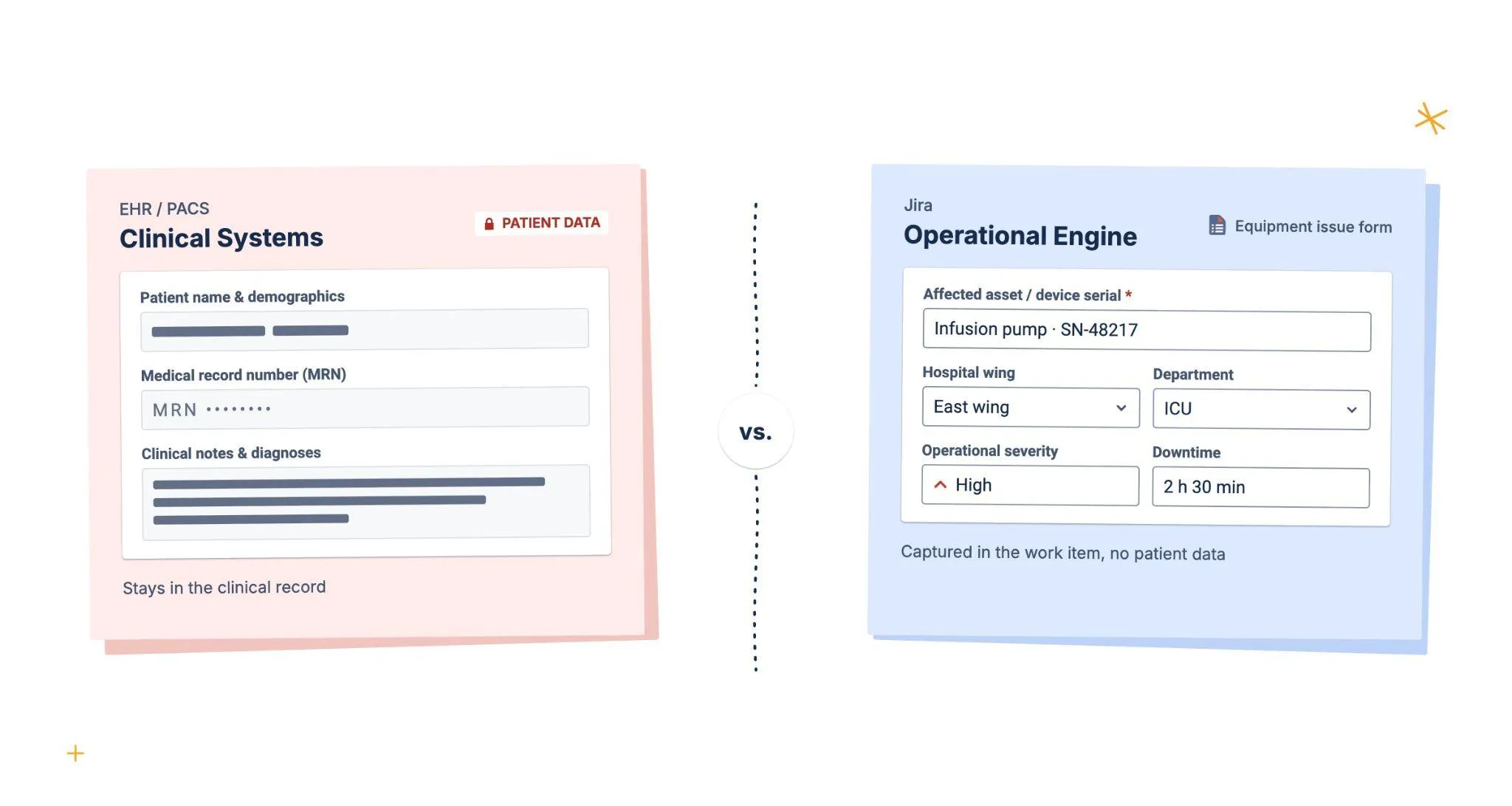
1. Architectural Guardrails: Separating Clinical Data from Operational Workflow
The foundation of compliant healthcare intake is simple: the clinical data remains in the clinical systems and the operational metadata lives in Jira. Native Jira forms and field configurations cover the basics, like required fields and fixed option lists. The guardrails below build on them.
Implementing Structural Guardrails on Intake
- Regex input validation: enforce strict regex matching on all reference fields. If a user is referencing an EHR change record then you must enforce a strict regex format such as
^EHR-[0-9]{5,8}$to ensure that the requester is actually submitting a valid change ticket rather than just pasting in a patient account number. - Constrained dropdowns over free text: replace the broad narrative boxes with constrained dropdowns for Hospital Campus, Department, Service Category and System Interface. These can be populated with dynamic values from Jira to keep them current and reduce the amount of form building that would otherwise be required.
- Embedded warning callouts: use rich-text content blocks and alert panels directly inside the form interface stating: “Operational Ticket Only: Do not submit any Patient Identifiable Information (PHI/PII), MRNs or clinical records.”
2. Preventing Custom Field Bloat: The 3-Tier Data Architecture
Healthcare workflows require dozens of very specific questions (sterilization verification, biomedical calibration parameters, vendor software versions etc.). Having a native Jira custom field for every one of those questions slows indexing and clutters every screen.
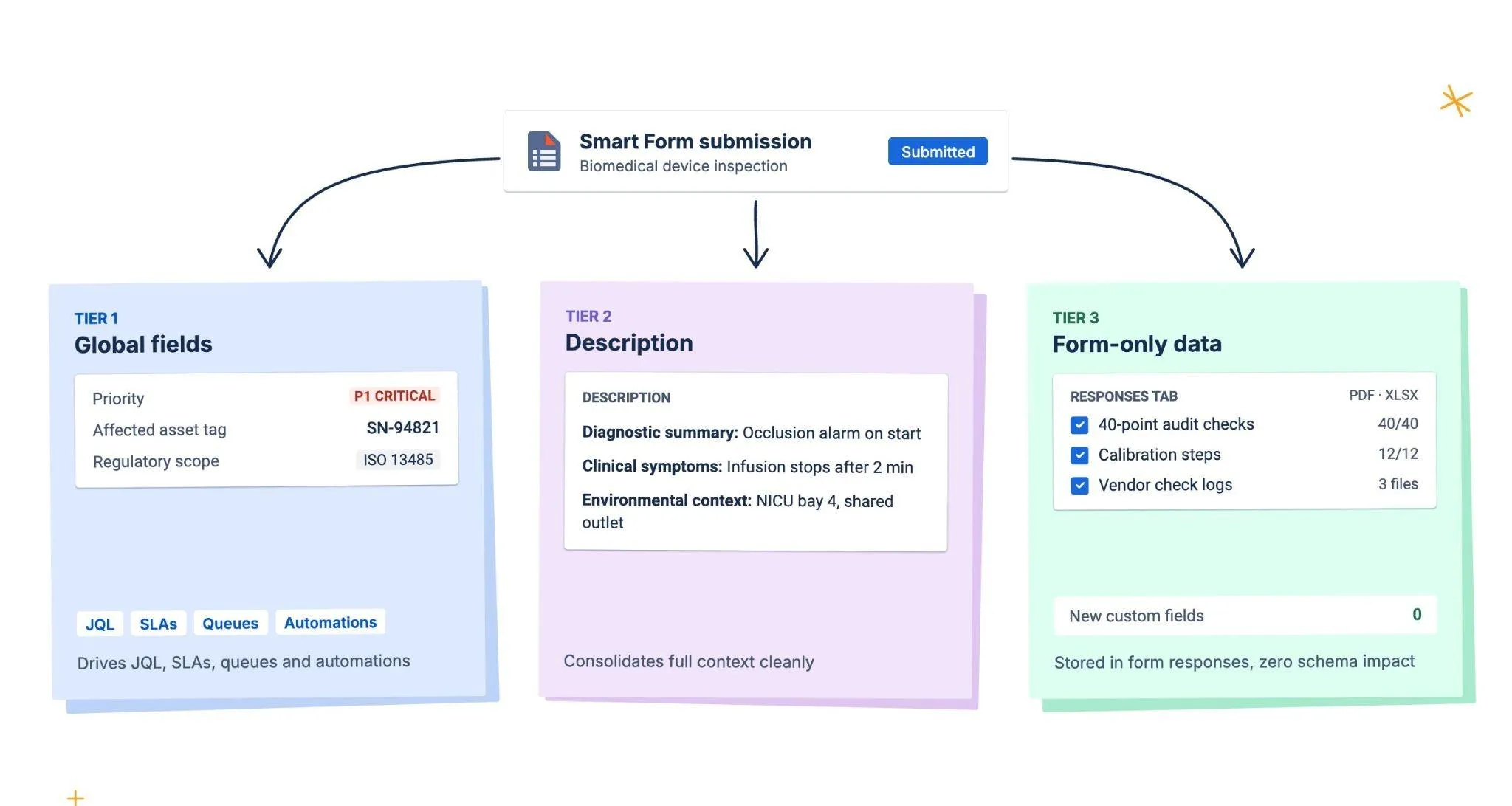
Smart Forms for Jira resolves this through a three-tier mapping model:
| Mapping Tier | Mechanism | Best Used For |
|---|---|---|
| Tier 1: Direct Field Mapping | Maps form elements directly to standard or custom Jira fields. | Data that drives JQL queries, SLA timers, board filters, or Jira Automation conditions (e.g., Priority, Affected Service, Component, Target Date). |
| Tier 2: Form-to-Description Mapping | Consolidates multiple form inputs into the issue’s native Description field as formatted [Label]: [Response] blocks. | Narrative diagnostic data (e.g., Steps to Reproduce, Current Operational State, Equipment Error Codes). Gives agents full context in a single view without creating new fields. |
| Tier 3: Form-Only Storage | Responses remain safely stored inside the attached form instance and the app’s centralized Responses tab. | Long-form inspection checklists, internal compliance scoring, or 50-question security assessments. Searchable, exportable to Excel/PDF for audits, and completely isolated from Jira’s field registry. |
3. Connect Workflows, Dynamic Approvals, and Change Context
Basic Jira workflows (To Do, In Progress, Done) aren’t adequate for regulated or high impact healthcare work. You need a proper Change Management workflow, which is a single, linear process:
Submitted ➔ Technical Assessment ➔ Clinical Review ➔ Approval ➔ Scheduled ➔ Implemented ➔ Validated ➔ Closed
Show the key details upfront (asset affected, planned start and end times, clinical impact, rollback plan etc.) so that the approver has a clear view of any potential conflicts, freeze periods or other issues prior to approval. Ensure at each stage of the workflow that all the operational requirements have been met before you proceed. For instance, ensure a risk assessment and affected service are both in place.
What Native Jira and Jira Service Management Give You
Jira and Jira Service Management already cover the basics of a controlled change process:
- Approval steps: in Jira Service Management any workflow status can be an approval step (with the approver selected from a user or group picker field). In Jira projects, teams will typically model an approval as a separate status with appropriate transition conditions.
- Transition validators and conditions: you can have fields that must be present prior to a transition, or you can restrict who can move a request to the next status.
- Automation: rules can be used to set approvers, add comments or transition the request based on field values.
This works well if the request already has good data in it. The problem in healthcare is that each stage of the process requires different information from different people. The technical lead will want a rollback plan, the clinical reviewer will want to know the patient safety implications and the approver will want the schedule. If you ask for all of that at the first submission you end up with a very long form and the answers are going to be less reliable as a result.
Auto-Attaching Forms by Workflow Status
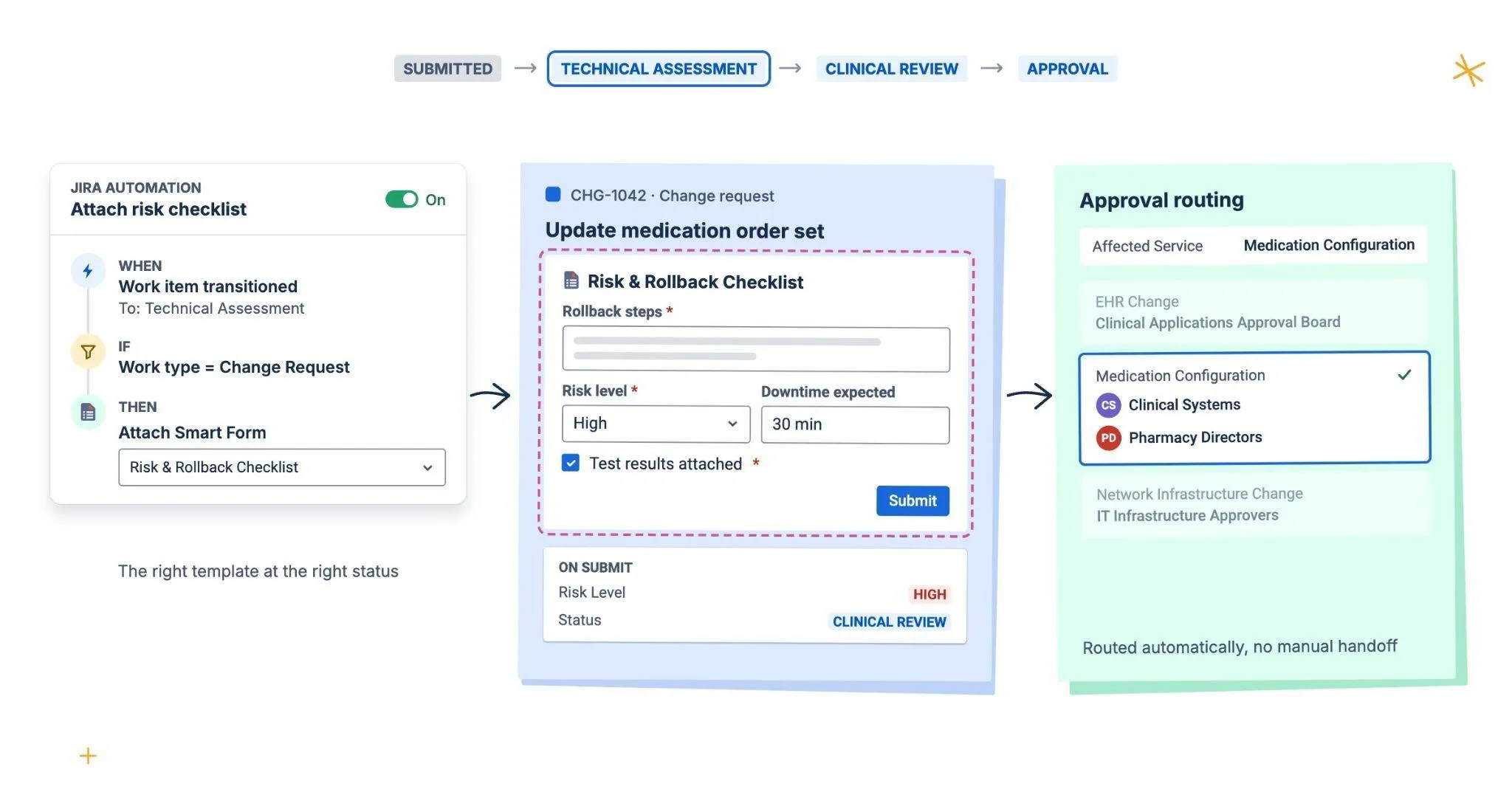
Rather than have all the forms on a ticket from the outset, Smart Forms for Jira will automatically attach the appropriate form based on the ticket’s status or type. So if a Change Request gets to Technical Assessment, a “Risk & Rollback Checklist” will be attached so the technical lead has the correct template at that stage.
Driving Workflow Progress with Field Updates and Status Changes
When users fill in the form, these become the trigger for the workflow to proceed rather than simply being static attachments.
- Automatic Jira field updates: as the user fills out the attached form, the responses get mapped directly into Jira fields (e.g. Risk Level, Affected Service, Downtime Expected). You can also map the form responses into the issue description to give full context without the need to create a myriad of global custom fields.
- Automatic status transitions: submitting the completed form will automatically move the Jira work item to the next status in the workflow (e.g. from Technical Assessment to Clinical Review or Approval).
- Validation guardrails: by making certain fields required on the form, you prevent the submission and stop the status change until all the required evidence, test results or rollback steps have been included.
Dynamic Approval Routing
Once the form populates the Affected Service field, Jira routes the approval to the proper stakeholders:
- EHR Change ➔ Clinical Applications Approval Board
- Medication Configuration ➔ Clinical Systems + Pharmacy Directors
- Network Infrastructure Change ➔ IT Infrastructure Approvers
Example: An EHR Order Set Change
A clinical analyst submits a change request to update a medication order set. The intake form just asks for the service in question, the clinical area and a summary. The request hits Technical Assessment and the Risk & Rollback Checklist attaches automatically. The technical lead completes it and sets the Risk Level to High, moving the request into Clinical Review. As the Affected Service is Medication Configuration, it goes to Clinical Systems and the Pharmacy Directors for approval. No manual routing is required and no one can go around the rollback plan.
4. Biomedical & Clinical Asset Validation via Jira Assets
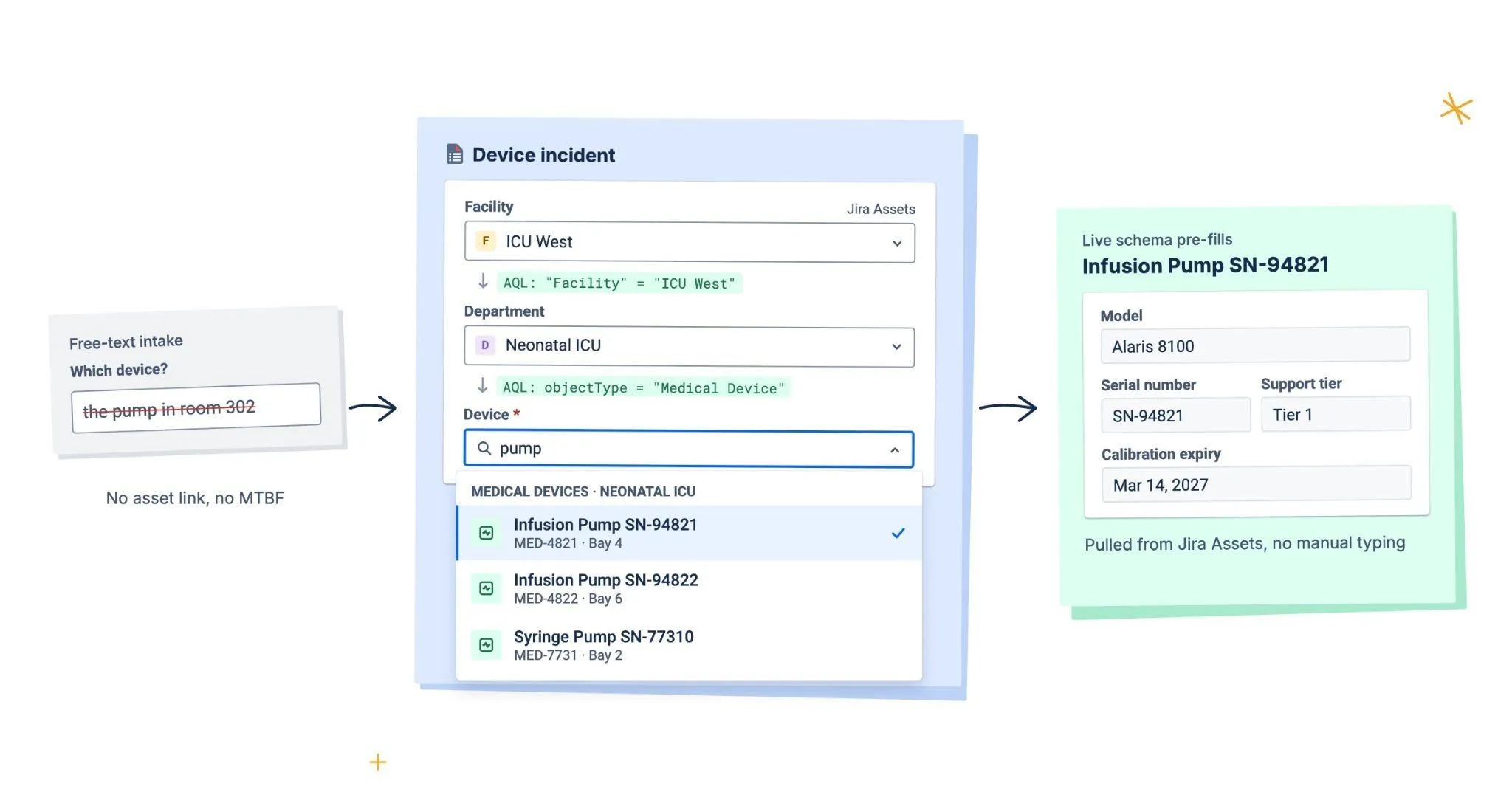
In healthcare operations you need to be able to link your work items to the actual piece of equipment. Free text such as “the pump in room 302” won’t cut it, and you can’t track mean time between failures (MTBF) with that kind of input. Jira Service Management already lets you link work items to Assets objects with an Assets field; the steps below build on that inside the intake form itself.
Configuration Steps
- Scope dynamic dropdowns with AQL: add an Assets selector to your form and have the options dynamically filtered using live schema data (e.g.
objectType = "Medical Device" AND "Location" = "ICU West"). - Pre-fill critical details: when the technician selects the asset tag, the form will automatically pre-populate the hardware model, support owner and last service date from Jira Assets so there’s no need to re-type those details.
- Compliance flags: if the asset schema indicates that preventive maintenance is overdue, then conditional logic on the form will display an immediate regulatory warning and apply an “Overdue-PM” label to the resulting Jira ticket.
5. Calibrate 24/7 SLAs Using Calculated Priority
Hospitals are 24/7/365. In Jira Service Management you can have your SLAs running on a 24/7 calendar for urgent clinical events and your standard requests on a business hours calendar.
The pitfall is if the requesters themselves choose the priority, then effectively every single ticket is P1 (Critical). A personal workstation shortcut issue is going to be treated with the same urgency as a hospital-wide medication administration outage, and that overwhelms the on-call engineering team. You could set priority with Jira Automation rules based on field values, but the approach below keeps that logic inside the form, so requesters never see a priority choice at all.
Invisible Priority Calculation via Form Logic
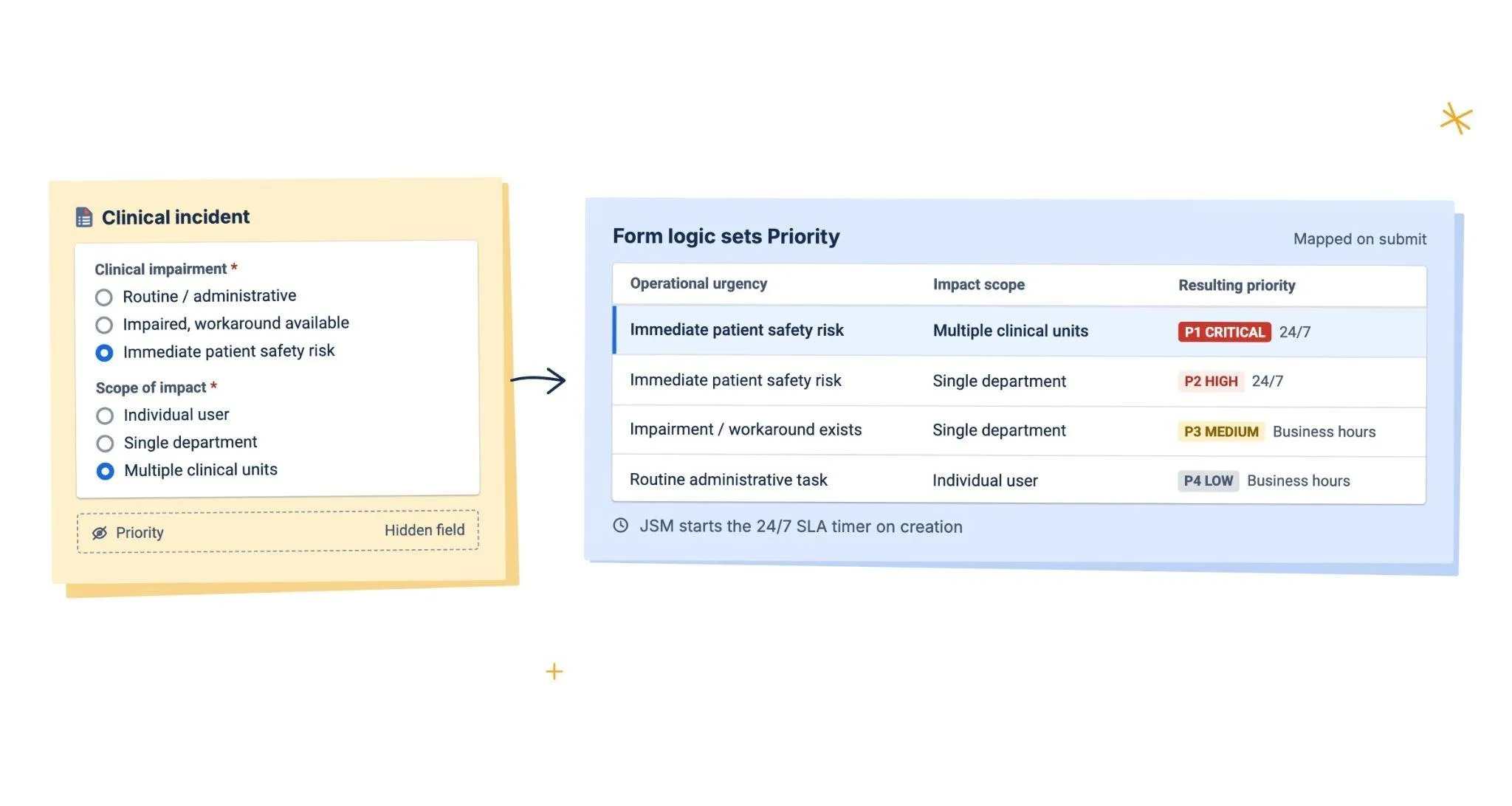
- Hide the Jira Priority field: completely remove the native Priority selector from the intake screen.
- Ask objective operational questions:
- Scope of Impact: Individual User | Single Department | Multiple Clinical Units
- Clinical Impairment: Routine / Administrative | Impaired (Workaround Available) | Immediate Patient Safety Risk
- Multi-condition form logic: Smart Forms evaluates the combination behind the scenes:
- IF Scope = Multiple Clinical Units AND Impairment = Immediate Patient Safety Risk,
- THEN the form maps Priority = Critical (P1) to the hidden Jira field.
- Trigger 24/7 SLA calendars: Jira Service Management picks up the mapped Priority value on creation and starts the 24/7 critical response timer immediately.
Example: An ICU Monitoring Outage
A nurse reports that central monitoring is down across three units. They pick Multiple Clinical Units and Immediate Patient Safety Risk. The form sets Priority to Critical behind the scenes, JSM starts the 24/7 SLA clock, and the on-call team is alerted right away. Meanwhile, a request to fix a desktop shortcut gets Individual User and Routine, lands as a low priority and waits for business hours.
6. Standardizing the 5 Regulated Healthcare Vectors
Each regulated intake type has its own requirements. The mechanics from Sections 1 to 5 apply to all of them, so below we focus on what’s unique to each one.
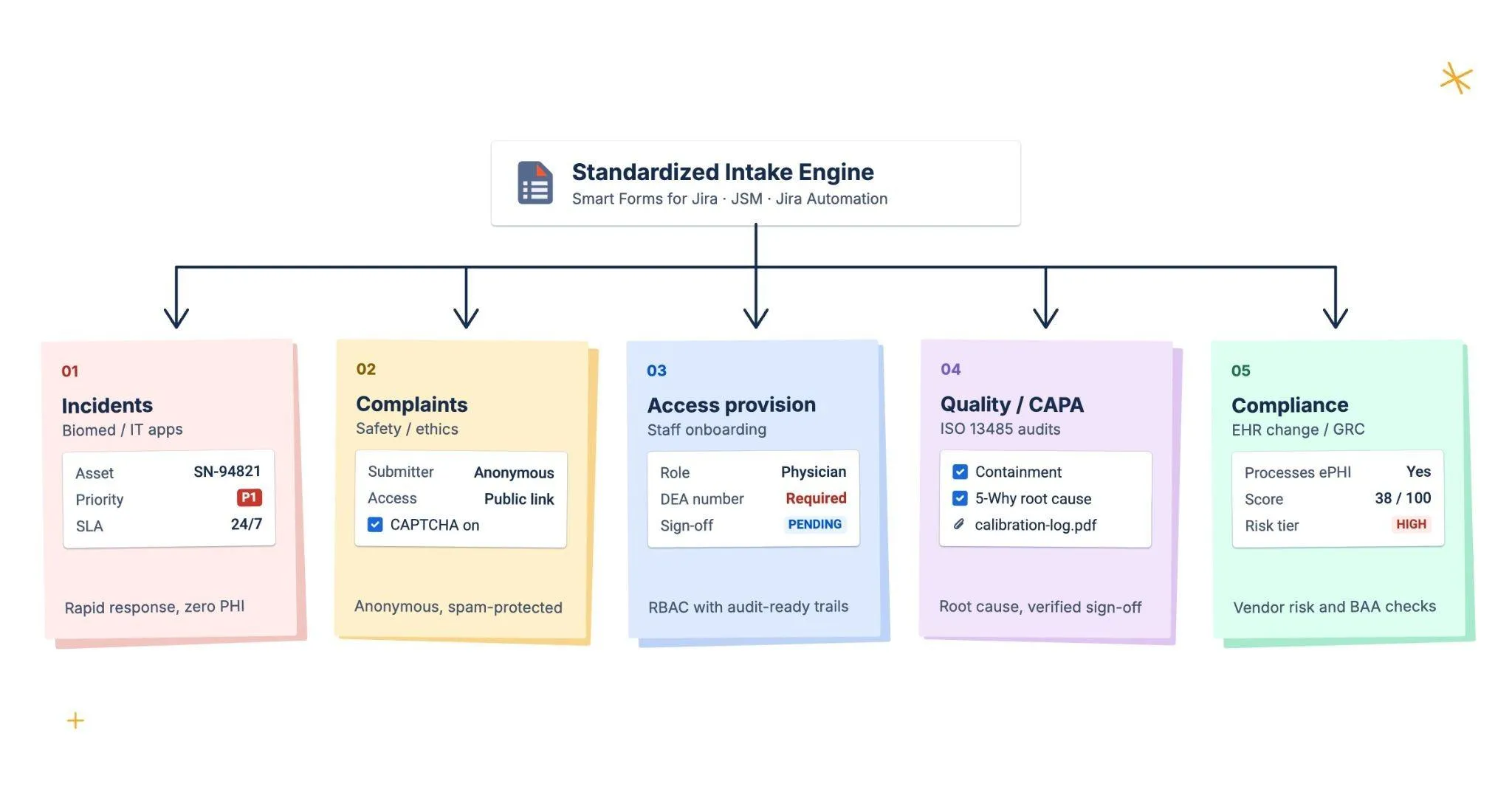
Vector 1: Clinical Incidents & Device Downtime
- The goal: rapid response, precise asset linkage and zero PHI.
- Form mechanics: cascading selectors for Facility / Floor / Equipment / Asset ID.
- Workflow validation gate: auto-attach an “Incident Closure Review” form at status Restored. A workflow validator will ensure that Root Cause, Mitigation Steps and Preventive Measures are all documented prior to the incident being able to move to Closed.
Vector 2: Patient Safety, Whistleblower & Ethics Complaints
- The goal: absolute submitter anonymity, external accessibility and spam-protected intake.
- Form mechanics:
- Set access to “Anyone with the link” and turn on CAPTCHA.
- Embed the form via iframe on the hospital staff intranet or host it via a QR code on the physical nursing station carts and automated dispensing cabinets.
- Deliberately leave the submitter name and email fields blank to ensure anonymity.
- A hidden field automatically injects Label = anonymous-safety-report.
- Routing: the submission automatically creates an issue in the restricted Quality & Legal Jira project, so reports can come in without a portal account and only the right people can see them.
Vector 3: Clinical Access Provisioning & Credentialing
- The goal: role-based access control (RBAC), audit-ready authorization trails and offboarding checks.
- Form mechanics:
- Intake captures the employee role, clinical license number, department and the EHR security templates requested.
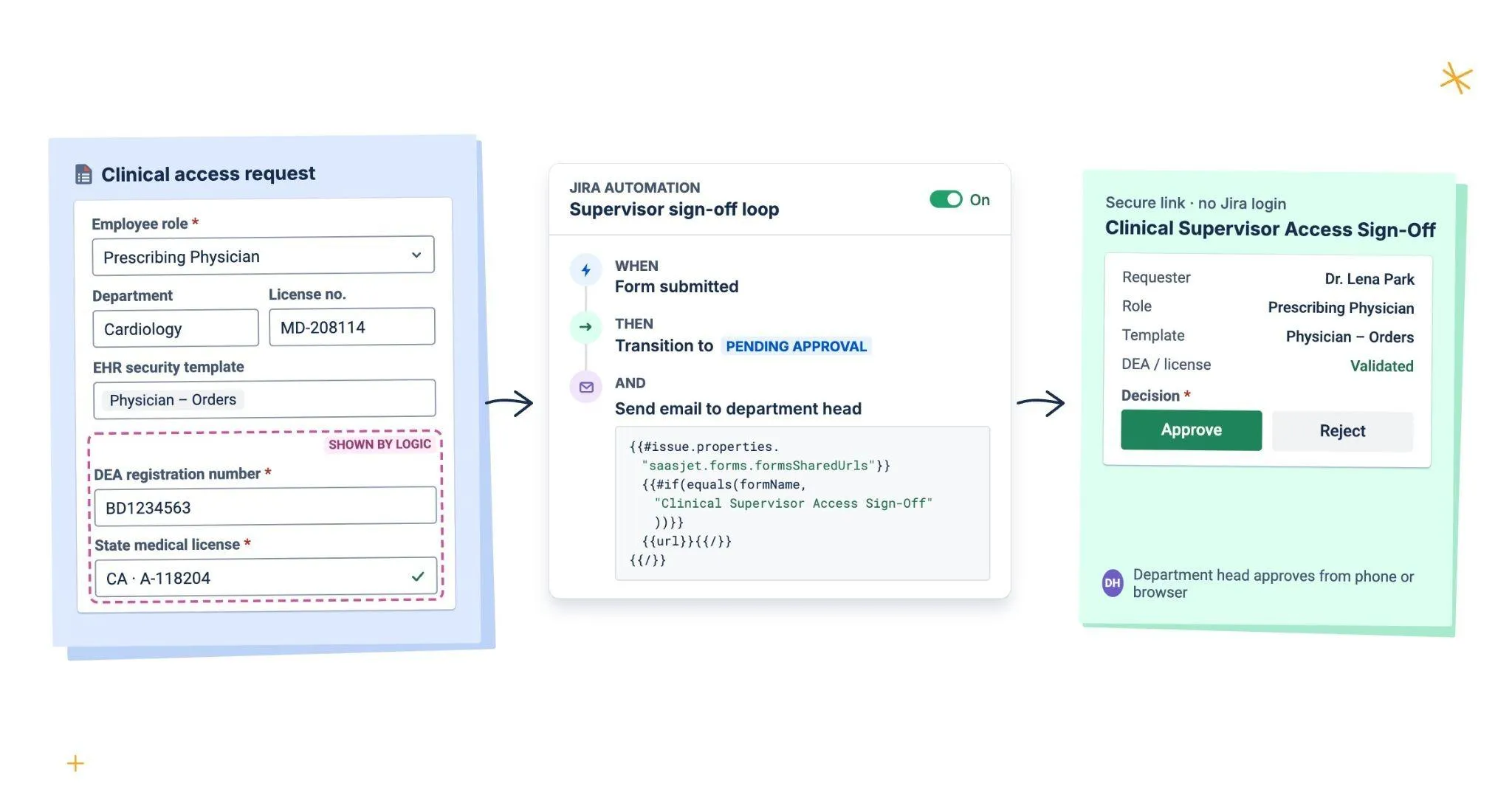
- Conditional logic: if “Prescribing Physician” is selected, then the fields for the DEA registration number and state medical license are both required for validation.
- Approval loop: submitting the form will set the status to “Pending Approval”. Jira Automation will then pick up the unique form URL via smart values:
- The rule emails the secure link directly to the clinical department head. The manager then approves or rejects the request from their mobile phone or browser without having to log into Jira.
Vector 4: Quality & CAPA (Corrective and Preventive Actions)
- The goal: ISO 13485 / 21 CFR Part 820 compliance, root cause tracking and verification sign-offs.
- Form mechanics:
- Form requires containment actions, 5-Why root cause analysis and risk reassessment scores.
- Multiple file upload validation: test results and calibration logs must be .pdf, .png or .jpg files. Validate this using a regex pattern match:
/\.(pdf|png|jpg)$/i.
- Cross-project portability: if a quality issue is cloned from a support project into the CAPA engineering board, then all the responses and form drafts that have been submitted with that work item are carried over with it. This maintains the full regulatory audit trail.
Vector 5: Compliance Reviews & Vendor Risk Assessments
- The goal: third-party risk scoring, HIPAA Business Associate Agreement (BAA) verification and GRC auditing.
- Form mechanics:
- Intake looks at data classification: does the vendor process ePHI? Is the data stored off-site?
- Form calculates an internal compliance score from the responses.
- High risk answers are automatically mapped to Risk Tier = High, routed for approval to the Information Security Officer and have the detailed SOC 2 review questionnaire automatically attached.
7. Connecting the External Layer: Zero-License Submissions & Vendor Verification
Healthcare systems frequently require input from outside parties who don’t have Jira licenses, such as traveling nurses, medical device field technicians (e.g., GE, Siemens, Philips) or research collaborators.
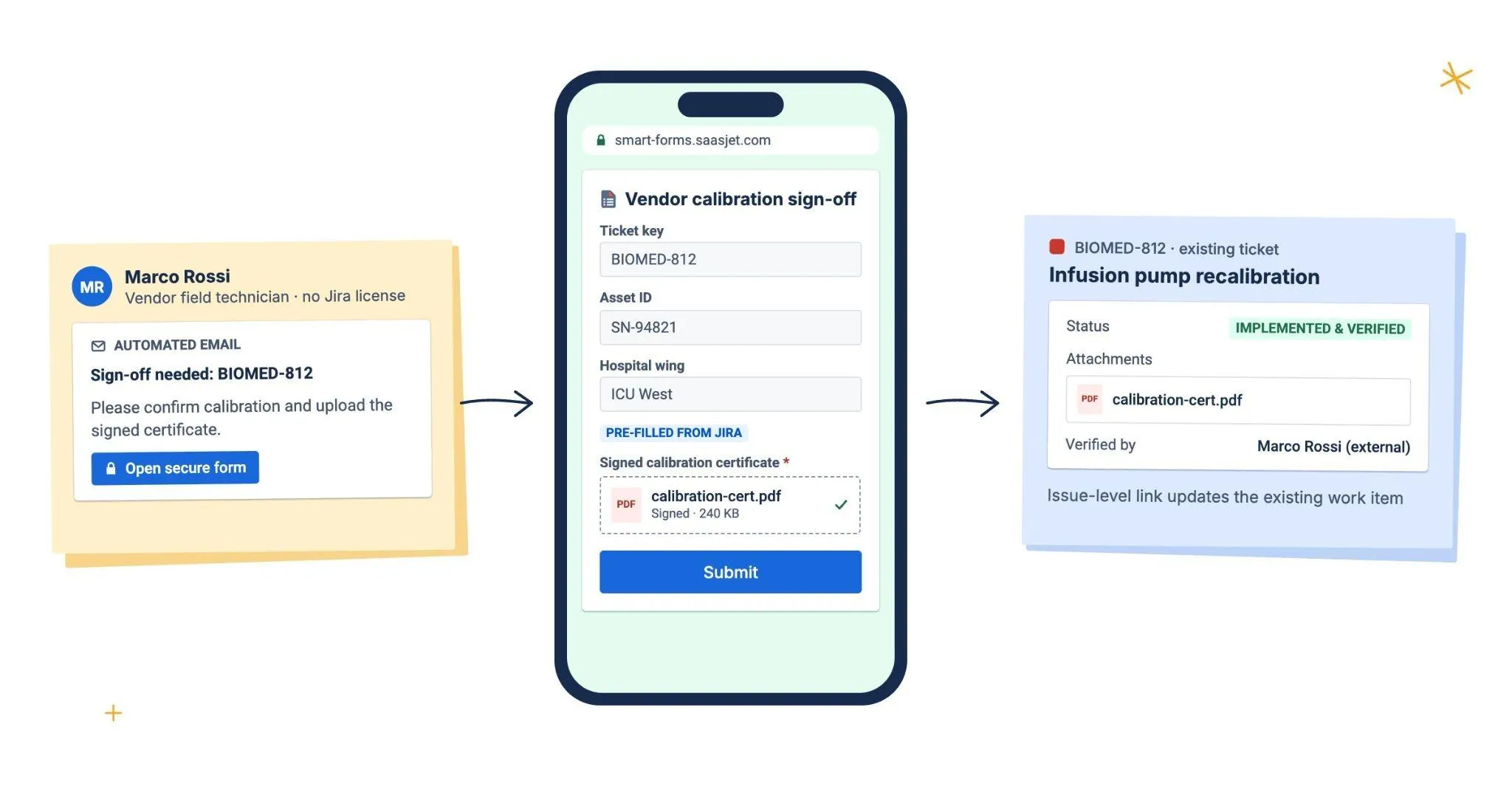
Where Native Intake Falls Short
- Native Jira Software: has no conditional form logic and no secure way for people without a Jira account to submit. You’d also need a custom field for every form field.
- JSM customer portal: requires accounts and portal configurations, which add an unnecessary amount of friction for one-off external contractors.
- Unstructured email: invites unstructured text, missed requirements and unencrypted PHI risks.
The Solution: Two External Sharing Models
| Public form link: originates from the form builder | Issue-level form link: attached to an existing Jira ticket |
|---|---|
| Single URL for unlimited submissions | Unique URL per issue; 1-time submission |
| Spawns a NEW Jira work item each time | UPDATES the existing Jira work item |
| Embeddable in Confluence & websites | Exposable via Jira Automation smart values |
| Best for: public intake, anonymous reports | Best for: approvals, vendor verification |
Context-Aware Pre-Filling via URL Parameters
Don’t ask external users for information Jira already has. If you’re emailing a vendor or contractor about an existing issue, append the issue context to the form link: https://smart-forms.saasjet.com/form/vendor-signoff?assetId={{issue.customfield_10120}}&ticket={{issue.key}}
The form kicks off with the Asset ID and Ticket Key already pre-populated in disabled/hidden fields. The technician simply goes through their verification checklist and uploads the calibration. That cuts the time to complete the form and removes the potential for mismatched records.
8. Multi-Department Orchestration via Jira Automation
When there’s a major operational event (onboarding a new clinical department, preparing an operating room etc.), there needs to be coordination between Facilities, Clinical Engineering, Pharmacy and IT.
Instead of manually duplicating issues across boards, connect your standardized intake form to Jira Automation:
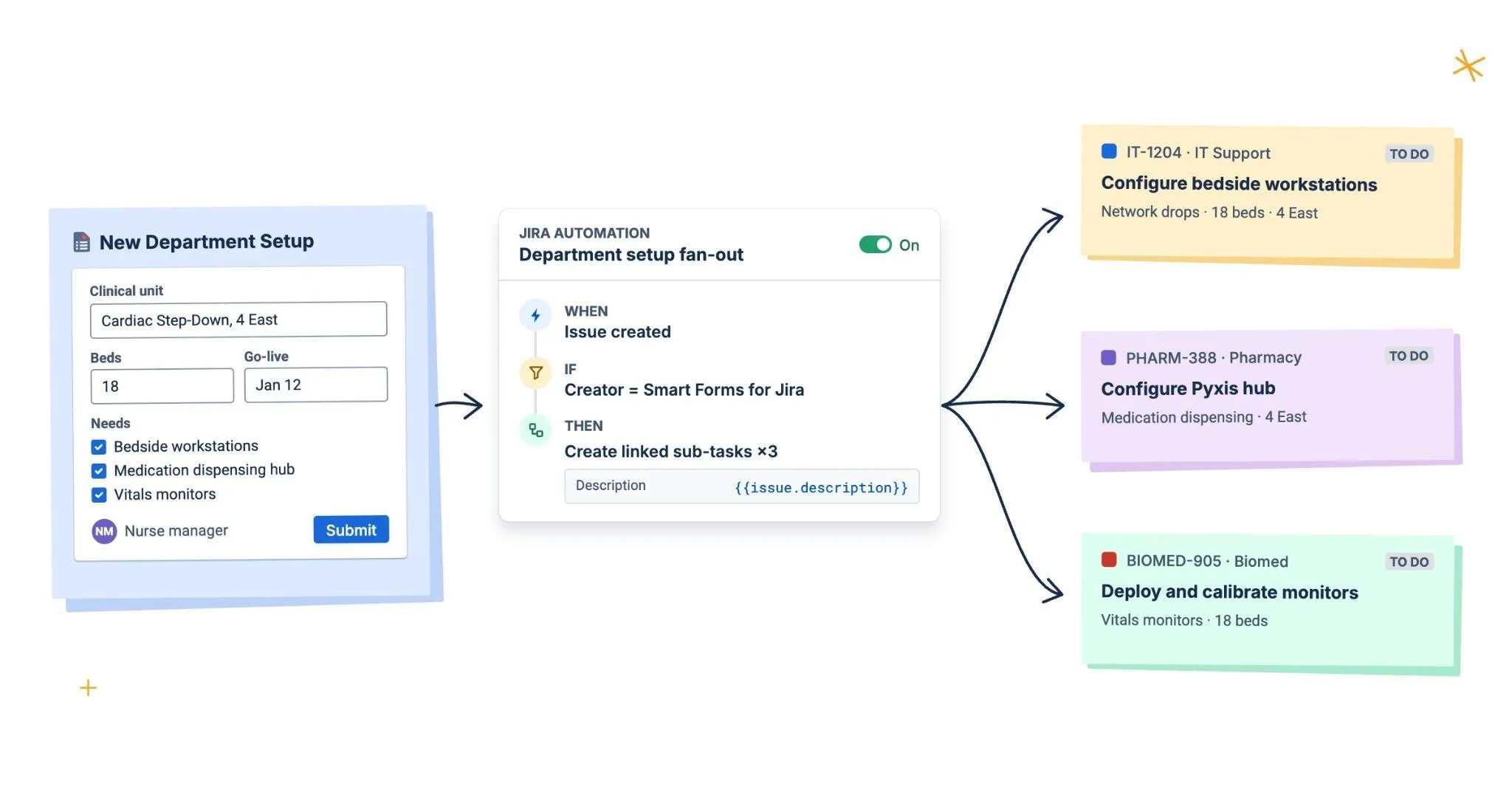
- Intake: the Nurse Manager completes a “New Department Setup” Smart Form on Confluence or the staff portal.
- Trigger: Jira Automation detects an issue being created where the Creator is “Smart Forms for Jira” and then evaluates the mapped form fields.
- Subtask generation: the rule creates linked child tickets across departments:
- IT gets a ticket to configure the bedside workstations and network drops.
- Biomedical engineering gets a ticket to deploy and calibrate the vitals monitors.
- Pharmacy informatics gets a ticket to configure the medication dispensing hubs.
- Context passing: the automation rule will copy the relevant form answers into the description of each subtask via smart values (
{{issue.description}}) so that every member of the team gets the context they need without having to go back and re-intake it.
9. Regulatory Reporting: From Form Responses to Audit Dashboards
Under Joint Commission, ISO 13485 and FDA audits, organizations are required to show process control, traceability and timely resolution of incidents.
While Jira issues handle daily operational work, compliance officers need aggregated operational metrics:
- Which medical device models are the most incident prone?
- What % of EHR order set changes result in an emergency rollback?
- Are our clinical incident response times meeting our 24/7 SLA?
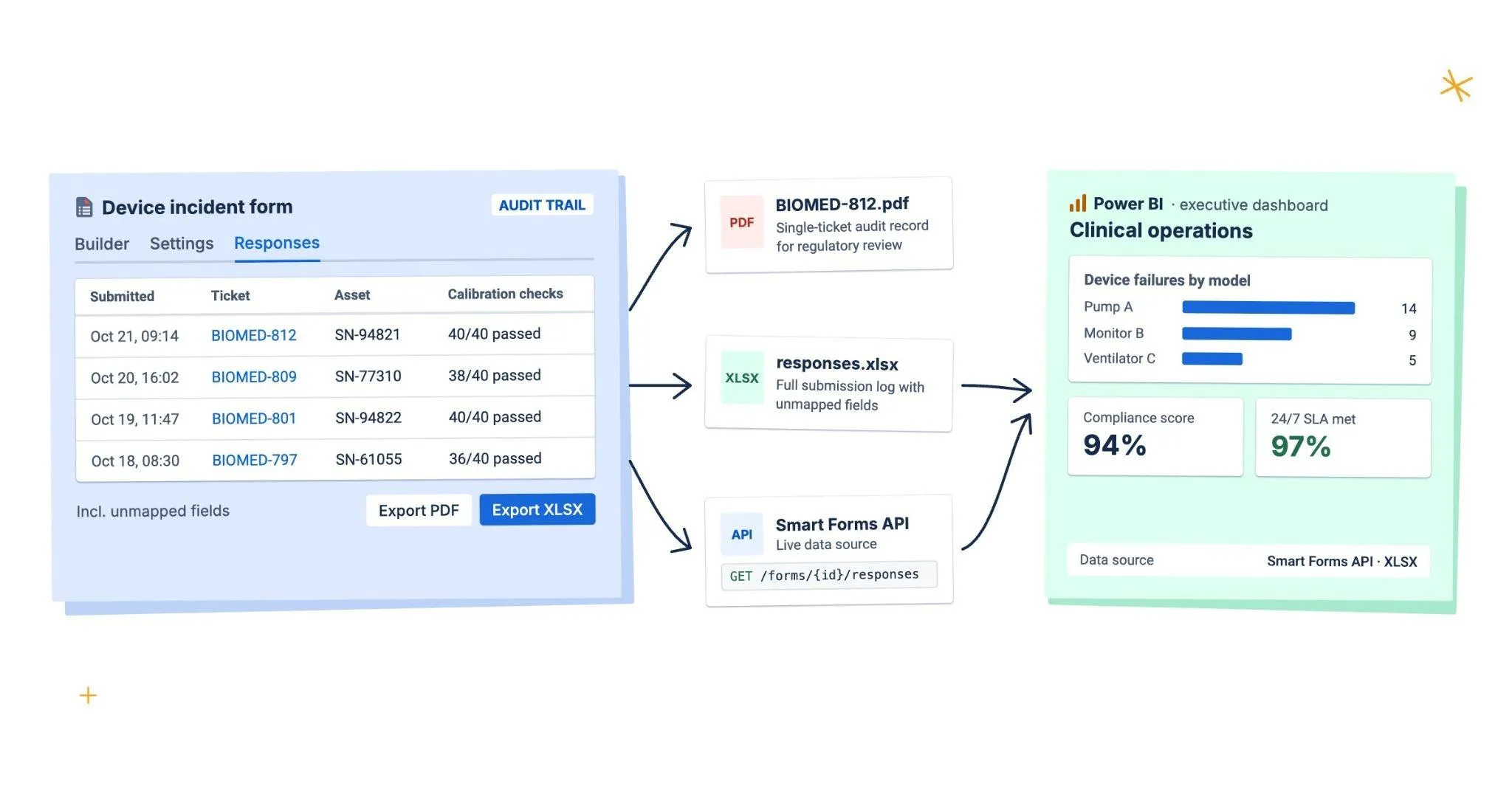
- Full traceability: the Smart Forms Responses tab will contain a full history of every submission (including the unmapped audit questions that were excluded from the Jira custom field registry).
- Audit documentation: individual submissions can be exported as clean, properly formatted PDFs complete with timestamps, submission stamps and the attached compliance evidence for the auditor.
- Enterprise analytics: you can export your response sets to Excel or pull them into Power BI via the API to cross-reference equipment downtime against your preventive maintenance schedules and your vendor warranty SLAs.
10. Healthcare Intake Readiness Checklist
Before moving any clinical or operational intake workflow into production, verify your configuration against these compliance and operational gates:
PHI & Privacy Safeguards
- Free text narrative fields are reduced and replaced with a series of structured selectors.
- Regex validation is applied to all reference IDs (e.g.
^EHR-[0-9]{5,8}$). - Prominent advisory callouts alert users that clinical records and PHI are prohibited.
Triage & SLA Integrity
- The native Jira Priority field is hidden from the customer and clinician intake screens.
- Operational Priority is calculated via multi-condition rules in the background.
- Always-on 24/7 SLA calendars are attached to the P1/P2 patient safety workflows.
Asset & Systems Traceability
- Medical devices and clinical applications are linked directly to Jira Assets via AQL.
- Asset selectors auto-populate the model number, location and maintenance date.
Workflow & Process Enforcement
- Multi-stage changes automatically attach the relevant checklists at the appropriate workflow status.
- Transitions out of critical statuses are blocked until the requisite forms have been submitted.
- Approvals are dynamically routed on the basis of the mapped department and service fields.
Zero-License & External Security
- Whistleblower and patient safety forms can be submitted anonymously via secure links.
- CAPTCHA is enabled on all publicly accessible and all intranet embedded forms.
- Vendor sign-off workflows use issue-level links which update the existing work items.
Jira Instance Performance
- The 3-tier mapping model is in operation: only JQL-critical data maps to custom fields.
- Narrative diagnostic details are consolidated cleanly into the Description field.
- Extensive compliance audits remain stored as form data, protecting the 700-field limit.
Bringing It All Together
Jira was never meant to hold patient records, and with the right intake layer it never has to. Standardized intake lets healthcare teams use Jira for what it does best, running operational work at scale, while staying on the right side of HIPAA and FDA requirements.
Three principles carry through every workflow in this guide:
- Keep PHI out by design, not by policy. Structured selectors, regex validation and clear warnings do more than a training memo ever will.
- Ask for information when it’s needed. Stage-based forms keep the first submission short and make sure approvals are complete.
- Let logic decide priority and routing, not requesters. Objective questions drive your SLAs and approvals automatically.
You don’t need to roll out all five intake types at once. Start with the workflow causing the most pain today (for most teams, that’s clinical incidents or access requests), run it through the readiness checklist above, and expand from there.
Need Help Designing Compliant Intake in Jira?
Seibert Solutions US helps healthcare and life sciences teams design Jira and Jira Service Management workflows that hold up to an audit. Whether you’re cleaning up an overloaded instance or building intake from scratch, our team can help you plan it, configure it and get it live.
Want to try the forms from this guide? Get Smart Forms for Jira on the Atlassian Marketplace and start with the PHI guardrails in Section 1.